domingo, 1 de mayo de 2022

Ejemplo de como usar Unit Conversion D365 FO

 static void Job_UnitConversion(Args _args)

{
    #define.itemId('M0018')
     
    //Method one
    UnitOfMeasureConverter_Product  unitConverter   = UnitOfMeasureConverter_Product::construct();    
    unitConverter.parmProduct(InventTable::find(#itemId).Product);
    unitConverter.parmFromUnitOfMeasure(UnitOfMeasure::unitOfMeasureIdBySymbol('kg'));
    unitConverter.parmToUnitOfMeasure(UnitOfMeasure::unitOfMeasureIdBySymbol('ea'));
    unitConverter.parmRoundAbsoluteValue(NoYes::No);
    unitConverter.parmApplyRounding(NoYes::No);
    print unitConverter.convertValue(1010);
 
    //Method two
    print UnitOfMeasureConverter::convert(1010,
            UnitOfMeasure::unitOfMeasureIdBySymbol('kg'),
            UnitOfMeasure::unitOfMeasureIdBySymbol('ea'),
            NoYes::No,
            InventTable::itemProduct(#itemId),
            NoYes::No);
 
    pause;
}

martes, 9 de febrero de 2016

Developing a Real-time Autocomplete Control in Windows Presentation Foundation (WPF)

http://www.codeguru.com/csharp/.net/net_wpf/article.php/c16939/Developing-a-Realtime-Autocomplete-Control-in-Windows-Presentation-Foundation-WPF.htm

jueves, 14 de enero de 2016

Replacement groups in AX 2012

https://community.dynamics.com/ax/b/goshoom/archive/2014/09/18/replacement-groups-in-ax-2012

AX 2012 introduced a new type of form control called “Replacement group”. It’s very handy, nevertheless quite a few developers still don’t know about it or are not sure how to use it effectively.
This post is not going to details; the intention is rather to show something simple, though still from end to end.
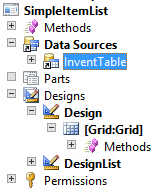
Let’s say that we want to create a form showing released products. We create a form withInventTable as the data source and with a grid.
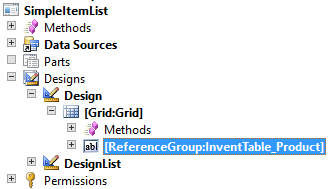
We’re especially interested in the Product field, so we drag it from the data source and drop it to the grid.
Form-Product
Notice that the type of the control is ReferenceGroup – we’ll talk about it very soon.
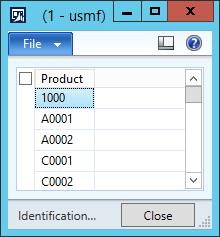
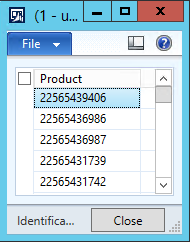
Without changing anything, we can run the form; it successfully displays product numbers:
Let’s say that users insist on working with product names instead of product codes. Maybe they should have used a better convention for product codes, but that’s another topic. Now we have meet the request.
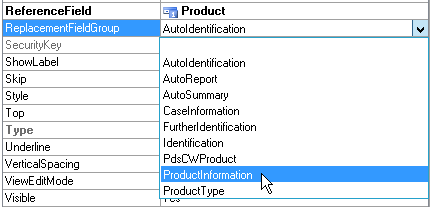
What should we do? Providing an edit method that would display names and find IDs from names specified by users? No, it’s much simpler with reference groups. Open properties of the reference group and change the value of ReplacementFieldGroup property fromAutoIdentification to ProductInformation:
ReplacementFieldGroup
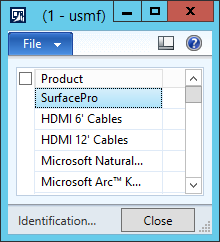
Save the form and open it again – it now shows product names. It’s that simple!
ProductNames
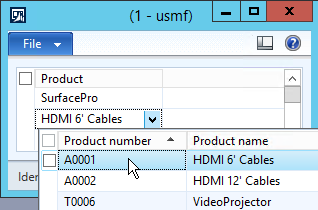
If the product was editable (which is not normally the case in InventTable), you would also get a lookup and would be able to select (or type) product names:
LookupItemName
You could also override the lookup, if you don’t like the default one.
Now we should look more closely at how it works.
First of all, look at the Product field in InventTable. Its base type is Int64 and extended data type is EcoResProductRecId. Properties of the EDT shows that ReferenceTable = EcoResProduct, therefore the Product field contains record IDs of EcoResProduct table.
If we used the Int64Edit control to display the Product field, we would see just numbers, which wouldn’t be very useful.
RecIds
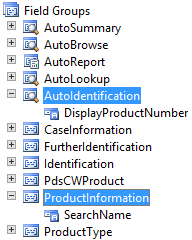
That’s why we have Reference group controls. The reference group in our form is bound to the Product field (set in ReferenceField property), so that’s what gets saved to database. But we don’t display it to users – instead of that, we use a replacement field group. Field groups are defined on tables in AOT – here we can see the groups of InventTable that we used in our example:
InventTable-fieldGroups
AX looks at the field (or even fields) contained in the field group and displays them instead of the record ID. If you change a value of the replacement field, AX finds the corresponding RecId and put it to the underlying field.
As you can see, reference groups allow you to change fields displayed to users by a simple property change. Also notice that it has zero effect to data stored in database – it still refers to a record ID.
There is one last thing I would like to mention, because it often confuses people. You may have a reference group for a worker showing the worker name (e.g. the Sales responsibleperson in Sales order form). The control uses the AutoIdentification field group of theHcmWorker table. The group contains a single field, Person, which is a RecId of DirPersontable. AutoIdentification group on DirPerson is empty, so where the name comes from? The trick is that DirPerson table inherits from DirPartyTable, which contains the Name field in its AutoIdentification group. AX deals with all this complexity for you.

lunes, 13 de mayo de 2013


Import From Excel in Batch Job - Dynamics AX

First i will quickly go through all the different approaches that i tried unsuccessfully and then i will discuss my final solution that worked.  i had three unsuccesfull attempts:
1. Standard procedure to import data from using AX's system classes for Excel(SysExcelApplication, SysExcelWorkbooks .. etc) . All these base classes are configured to run only on client (verify the RunOn property). So my program was running fine on client but failed to run on Batch Job on Server.  FYI:  i changed the RunOn property to "Called from" but that didn't help.
My next approach was to do all the excel stuff in C#.net and then consume the .net assembly in AX.

2. Using .Net's System.Data.Oledb :  i chose this namespace instead of Microsoft.Office.InterOp.Excel because this doesn't need the Office Excel installed on the Server. I faced the same issue as in approach 1,  my AX program was able to create an instance for .Net class in AX client, but was failing to create the instance in Batch Job.
3. Using .Net's Microsoft.Office.InterOp.Excel: i was left with this choice and i thought this would work without any issue but the same result. AX client is able to consume my dll but Batch Job was failing.
Final solution:
Thanks to my friend Dusan Chalic for recommending me to use Excel Reader from codeplex, it worked perfectly, here is the C# solution:
a) add reference to Excel.dll (download it from above link in codeplex) in your Visual Studio Project
b) create a method to read the Excel contents into a DataSet instance
c) create a method that will take a row number and return the corresponding row (AX will call this method)
d) Here is C# class that will read data from Excel file :


using System;
using System.Collections.Generic;
using System.Linq;
using System.Text;
using Excel;
using System.IO;
using System.Data;

namespace ExcelReader
{
    public class ReadDataFromXL
    {
        DataTable xlDataTable;

        public string RetrieveFromXL(string fileName)
        {
            //pass the filename with path
            IExcelDataReader xlReader = null;
            FileStream xlStream = null;
            DataSet xlDataSet = null;
            string empId, fullName, accPriority, routNum, accNum, accType;
            xlDataTable = new DataTable();
            xlDataTable.Columns.Add("EmpId", typeof(string));
            xlDataTable.Columns.Add("FullName", typeof(string));
            xlDataTable.Columns.Add("AccPriority", typeof(string));
            xlDataTable.Columns.Add("RoutNumber", typeof(string));
            xlDataTable.Columns.Add("AccNum", typeof(string));
            xlDataTable.Columns.Add("AccType", typeof(string));

            try
            {
                xlStream = File.Open(fileName, FileMode.Open, FileAccess.Read);

                //1. Reading from a binary Excel file ('97-2003 format; *.xls)
                xlReader = ExcelReaderFactory.CreateBinaryReader(xlStream);

                //2. Reading from a OpenXml Excel file (2007 format; *.xlsx)
                //xlReader = ExcelReaderFactory.CreateOpenXmlReader(xlStream);

                xlReader.IsFirstRowAsColumnNames = false;
                xlDataSet = xlReader.AsDataSet();

                int rowNumber = 0;
                while (xlReader.Read())
                {
                    rowNumber++;
                    if (rowNumber < 5)
                        continue;
                    
                    empId = SanTryParse(xlReader.GetString(0));
                    fullName = SanTryParse(xlReader.GetString(1));
                    accPriority = SanTryParse(xlReader.GetString(2));
                    routNum = SanTryParse(xlReader.GetString(3));
                    accNum = SanTryParse(xlReader.GetString(4));
                    accType = SanTryParse(xlReader.GetString(5));

                    if (empId == "" && fullName == "" && accPriority == "")
                        break;
                    //Console.WriteLine(string.Format("{0} {1} {2} {3} {4} {5}", empId, fullName, accPriority, routNum, accNum, accType));                    
                    // fill the datatable
                    xlDataTable.Rows.Add(empId, fullName, accPriority, routNum, accNum, accType);
                }
                //Console.WriteLine("Row Count: " + xlDataTable.Rows.Count);
                xlReader.Close();               
            }
            catch (Exception ex)
            {
                if(xlReader != null)
                     xlReader.Close();
            }           
            return "Done";
        }

        public int GetRowCount()
        {
            return xlDataTable.Rows.Count;
        }        

        public string GetRow(int index)
        {
            string empId, fullName, accPriority, routNum, accNum, accType;
            DataRow currRow = xlDataTable.Rows[index];
            int endCol = 5;
            string result;

            empId = SanTryParse(currRow[0]);
            fullName = SanTryParse(currRow[1]);
            accPriority = SanTryParse(currRow[2]);
            routNum = SanTryParse(currRow[3]);
            accNum = SanTryParse(currRow[4]);
            accType = SanTryParse(currRow[5]);

            result = empId + "!" + fullName + "!" + accPriority + "!" + routNum + "!" + accNum + "!" + accType;
            return result;
        }

        private string SanTryParse(object input)
        {
            if (input == null)
                return "";
            return Convert.ToString(input);
        }
    }
}

e) Sign the above VS project, compile and deploy the assembly to GAC.
f) Now the AX part - open AOT -> References node -> right click and Add reference to the above assembly in GAC
g) create a a new batch job Class in AX (Extending RunBaseBatch)
h) create a method , here is the code to call the methods in C# class and read the data from Excel:


void importDataFromXlReader()
{
    Set   permissionSet;
    System.Exception e;
    str result,  currRowStr;
    int totalRows, i, j;
    List values;
    ListIterator iter;
    str valuesArr[6];
    SanTempTable buffer;  // Temporary table to hold the data from Excel
  ;
    try
    {


        permissionSet =  new Set(Types::Class);
        permissionSet.add(new InteropPermission(InteropKind::ClrInterop));
        permissionSet.add(new InteropPermission(InteropKind::ComInterop));
        permissionSet.add(new InteropPermission(InteropKind::DllInterop));
        CodeAccessPermission::assertMultiple(permissionSet);


        xlReader = new ExcelReader.ReadDataFromXL();
        result = xlReader.RetrieveFromXL(fileName);
        //info(result);


        if(result == "Done")
        {
          totalRows = xlReader.GetRowCount();
          if(totalRows <= 0)
             {
               errMessage = "Zero Rows read from XL, there is an issue";
               throw error(errMessage);
             }


          lastRow = totalRows; //lastRow is class vraiable used for ProgressBar
          info(strFmt("Total Rows:  %1", totalRows));


           for(i=0; i
           {
             currRowStr = xlReader.GetRow(i);
             //info(strFmt("Current Row: %1", currRowStr));
             values = Global::strSplit(currRowStr, '!');
             iter = new ListIterator(values);
             j = 0;
             while(iter.more())
             {
               j++;
               //info(iter.value());
               if(j<=6)
                 valuesArr[j] = iter.value();
               iter.next();
             }
             //info(strFmt("Individual Values: %1 %2 %3 %4 %5 %6 ", valuesArr[1], valuesArr[2], valuesArr[3], valuesArr[4], valuesArr[5], valuesArr[6] ));
             // fill the buffer
             buffer.EmplId = valuesArr[1];
             buffer.EmpName = valuesArr[2];             
             buffer.AccountPriority = str2Int(valuesArr[3]);             
             buffer.RoutingNumber = valuesArr[4];
             buffer.AccountNumber = valuesArr[5];
             buffer.AccountType = valuesArr[6];
             buffer.insert();
           }// end for
        }// end if


        CodeAccessPermission::revertAssert();
    }
    catch(Exception::CLRError)
    {
        info(CLRInterop::getLastException().ToString());
        e = CLRInterop::getLastException();
        errMessage = e.get_Message() + "\n";
        while( e )
        {
           info( e.get_Message() );
           e = e.get_InnerException();
           errMessage = errMessage +  "\n" + e.get_Message();
        }
        throw error(errMessage);
    }
}


with these 2 code snippets we should be able to import data from Excel in AX 2009 Batch Jobs.

Happy Daxing and Cyber Monday shopping
San.